
Reduce burn depth on walnut
AI proposes lower power and adjusted speed. You see the diff: Power 80% to 55%, Speed 800 to 1100 mm/min.
Type what you want: 'reduce burn on walnut' or 'optimize this photo for anodized aluminum.' The AI analyzes your image and current settings, then proposes exact parameter changes with a before-and-after diff. Review it. Hit Confirm to apply, or Dismiss to keep things as they are.
Most laser software with 'AI' gives you generic advice you still have to interpret. Light Lane's AI reads your actual image, checks your current settings, and proposes exact parameter changes. You see a before-and-after diff showing which values change and why. Speed 1000 to 800. DPI 254 to 300. Processing mode: raster threshold to raster dither (Floyd-Steinberg). Each change has an explanation.
Reduce burn depth on walnut
AI proposes lower power and adjusted speed. You see the diff: Power 80% to 55%, Speed 800 to 1100 mm/min.
Optimize this photo for 3mm birch plywood
AI suggests changes to processing mode, DPI, and dither algorithm tailored to the image content and material.
Sharpen the contrast on anodized aluminum
AI adjusts image processing settings (contrast, gamma, saturation) while keeping your speed and power intact.
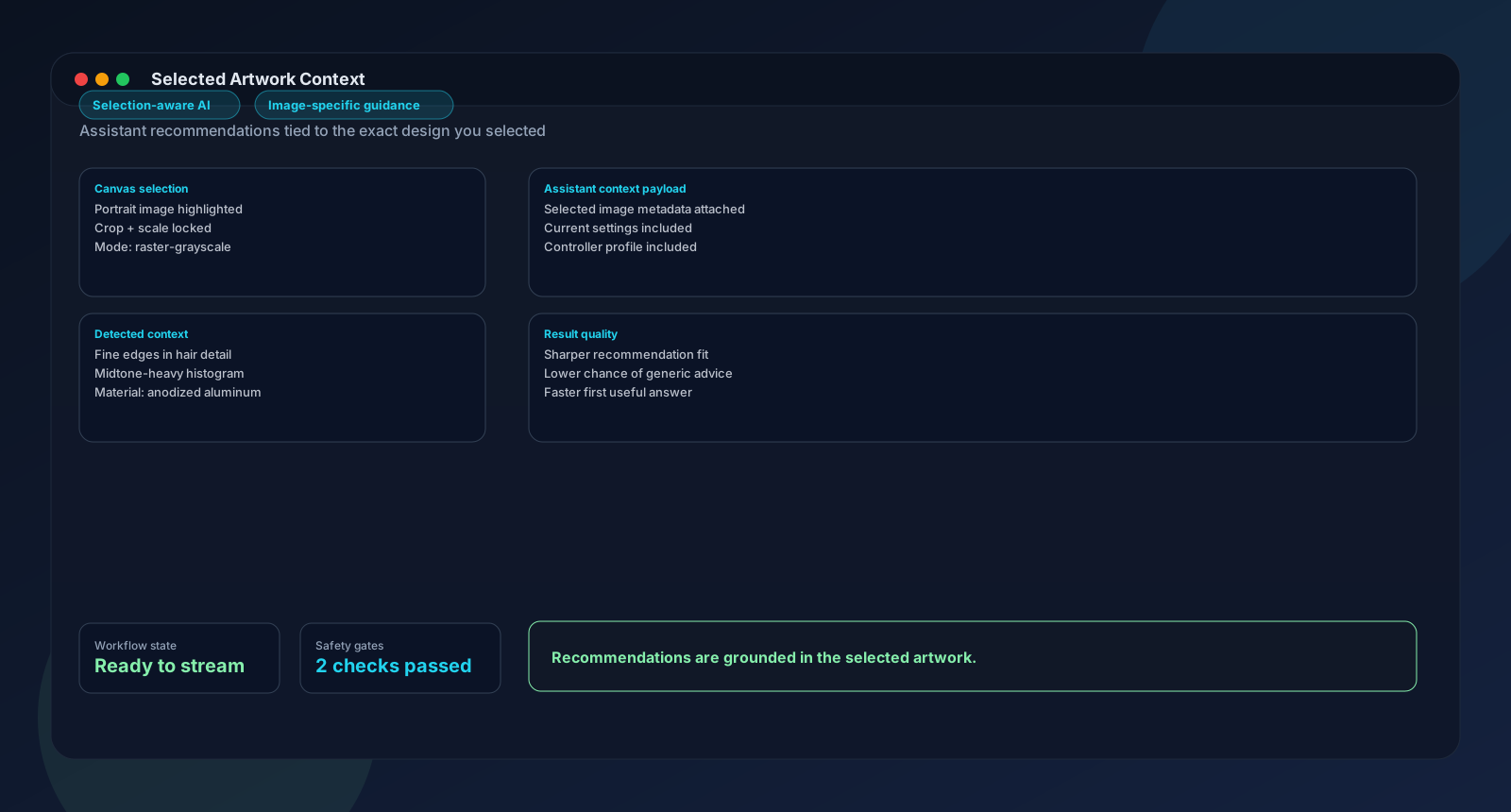
Select your image on the canvas
Click the image you want to engrave. The AI assistant panel switches to image-aware mode and reads your current settings automatically.
Why it matters: Without a selected image, you get general settings Q&A. With one selected, the AI analyzes the actual artwork for targeted suggestions.
Type what you want in plain language
Describe your goal. 'Optimize for oak.' 'Sharpen this photo for acrylic.' 'Reduce power but keep edge detail.' You can also add constraints: 'don't change speed and power, just image settings.'
Why it matters: You describe the outcome you want. The AI figures out which parameters to adjust.
Review the settings diff
The AI returns a before-and-after patch. Speed 1000 to 800. Power 80% to 65%. Processing mode: raster threshold to raster dither. Each change has a short explanation next to it.
Why it matters: You see exactly what would change and why before anything touches your job.
Hit Confirm or Dismiss
Confirm applies every proposed change to your active job instantly. Dismiss rejects the entire suggestion. Your settings stay exactly where they were.
Why it matters: The AI suggests. You decide. That is the entire model.
The assistant lives in a floating panel beside your canvas. Select an image and it switches to image-aware mode with richer suggestions. No image selected, and it answers general settings questions instead.
No. The AI proposes changes and shows you a before-and-after diff. Nothing changes until you click Confirm. Click Dismiss to reject the suggestion entirely.
Yes. If you already ran a material test grid and found the right speed and power, type something like 'don't touch speed and power, just optimize image settings.' The AI will only propose changes to processing mode, DPI, dither algorithm, and image adjustments.
No. The AI runs server-side and needs an internet connection plus an active Light Lane license. In air-gapped environments, you can still use every other feature including the material test grid, templates, and manual settings controls.
The AI runs on Light Lane's server infrastructure. We pick the best model for the job and may change it as better options become available. We don't lock to a single provider.
Yes. The AI assistant works with any active Light Lane license, including Maker ($12/month) and Pro ($24/month). During the 14-day free trial you get full Pro access, which includes everything.
Import a photo, select it, and type what you want. Review the diff. 14-day free trial, no card required.
Validate one real workflow in Light Lane, then move to the most relevant guide or feature page.
Last updated February 20, 2026