
Material test grid
Burn up to a 20x20 grid varying speed and power. An interactive monitor shows color-coded cells as they engrave. Click any finished cell to see its speed and power, then hit Apply to copy those settings directly into your job.
LightBurn is mature software with a large community and features Light Lane doesn't have. Light Lane is newer, with an AI settings assistant and a material test grid that LightBurn doesn't have. This page covers both sides honestly.
LightBurn has a full vector design editor with bezier drawing tools built in. You can design your artwork inside LightBurn without needing Inkscape or Illustrator. Light Lane does not have this. You import your designs as PNG, JPEG, BMP, or SVG from an external design app, and Light Lane handles everything from import to the laser.
LightBurn also has camera alignment. A live camera view of your material lets you position artwork precisely before engraving. Light Lane does not have camera alignment. The framing feature in Light Lane traces a low-power outline with the laser head so you can check placement, but that is a different mechanism, not a camera preview. Camera alignment is on the roadmap for Light Lane but is not available yet.
LightBurn supports rotary attachments for engraving tumblers and cylinders. Light Lane has no rotary support at all. That is also planned but not available.
LightBurn has been shipping for years with a large, active community. If you run into a problem, there are forums, video tutorials, and detailed documentation. Light Lane's community is smaller.
LightBurn also supports a broader range of controller protocols natively, including full Ruida CO2 support. Light Lane supports GRBL, Marlin, and Smoothieware fully, with Ruida in beta via an external helper.
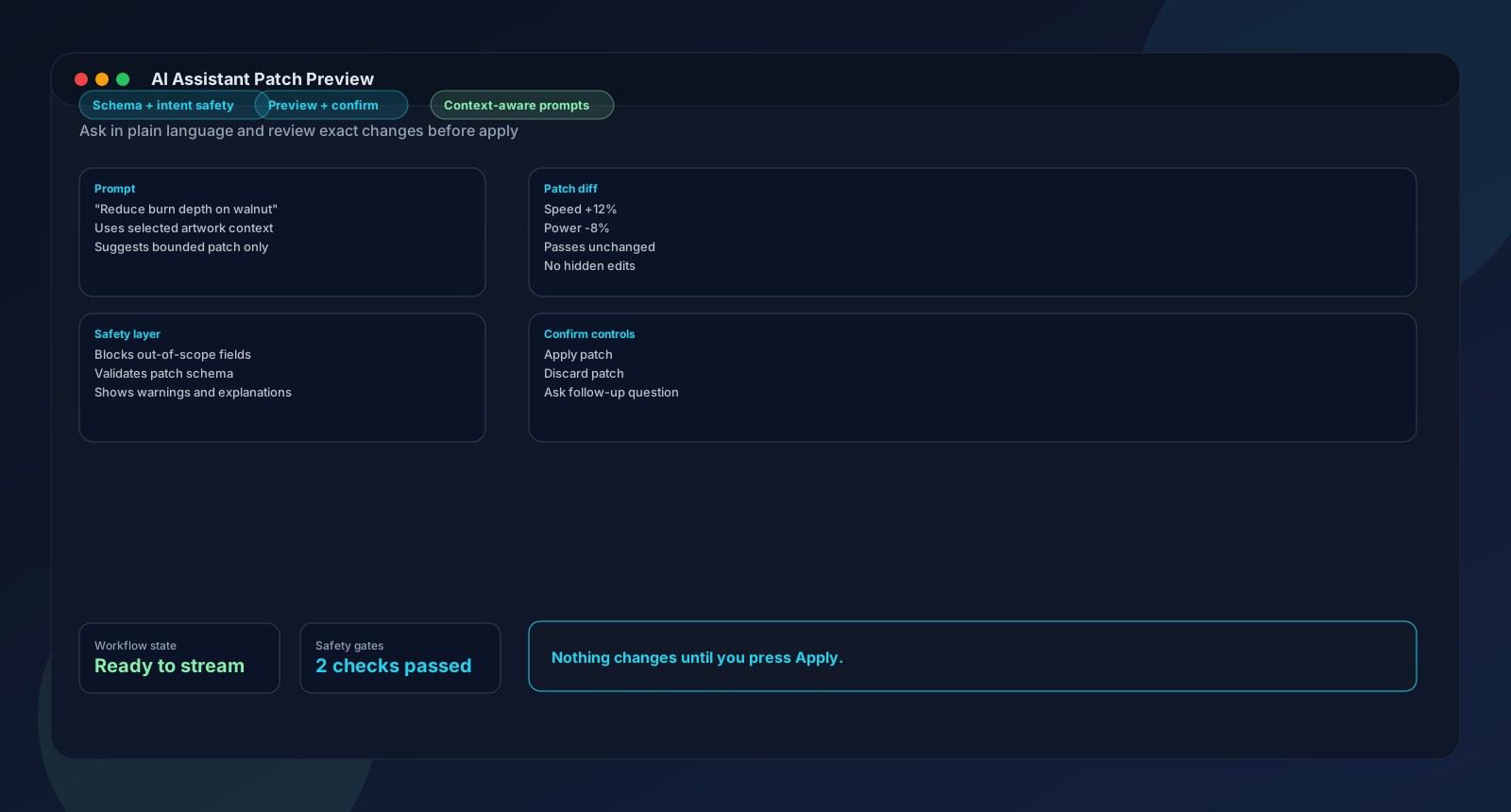
Select an image on the canvas and the AI Engrave Assistant panel appears. Type what you want: 'Optimise this photo for oak, I want clean fine detail.' The AI analyses your image and current settings, then shows a before/after diff. Processing Mode changes from Raster Threshold to Raster Dither. DPI goes from 200 to 254. Dither Algorithm changes to Atkinson. Review every change, then hit Confirm or Dismiss. Nothing applies until you approve it.
Material test grid
Burn up to a 20x20 grid varying speed and power. An interactive monitor shows color-coded cells as they engrave. Click any finished cell to see its speed and power, then hit Apply to copy those settings directly into your job.
Reusable layout templates
Save your canvas layout, image placeholder positions, cut-line overlays, and material settings as a .lltemplate file. Load it next week and the layout is ready. Export and share the file with other people on the same machine.
Accurate as of February 2026. Check each product's website for current pricing.
| Feature | Light Lane | LightBurn |
|---|---|---|
| AI settings assistant (before/after diff) | Yes | No |
| Material test grid (up to 20x20) | Yes (Pro tier) | No |
| macOS support | Yes | Yes |
| Windows support | Yes | Yes |
| Built-in vector design editor | No | Yes |
| Camera alignment | No (planned) | Yes |
| Rotary support | No (planned) | Yes |
| GRBL support | Yes (full) | Yes |
| Marlin support | Yes | Yes |
| Smoothieware support | Yes | Yes |
| Ruida CO2 support | Beta (external helper required) | Yes (native, mature) |
| Reusable layout templates (.lltemplate) | Yes | Project-based |
| SVG layer editing | Yes | Yes |
| File import: PNG, JPEG, BMP, SVG | Yes | Yes |
| File import: DXF, AI, PDF | No | Yes |
| 14-day free trial, no card | Yes | 30-day trial |
| Pricing model | $12–$24/month subscription | One-time licence + paid upgrades |
This takes about two hours and gives you real data instead of reading comparison pages.
Pick one job you actually run
Choose a file and material you use regularly. An SVG design, 3mm birch plywood, a standard cutting size. Use the exact same file in both apps.
Why it matters: A representative job gives you a real comparison. A test file tells you nothing useful about your actual work.
Run the material test grid in Light Lane
Open Tools, then Material Test Grid. Set your speed range and power range. Send it to the laser. As the cells engrave, the interactive monitor shows each one color-coded. Click the cell that looks cleanest, then hit Apply to copy those settings into your job.
Why it matters: This is the most different thing about Light Lane compared to LightBurn. One calibration burn replaces repeated manual adjustments.
Ask the AI to help with image settings
Import your artwork. Select the image on the canvas. The AI assistant panel shows image-specific suggestions. Type: 'optimise this for birch, I want sharp edges.' Review the diff and confirm or dismiss each suggestion.
Why it matters: This is the other thing LightBurn doesn't have. Seeing a diff with real values is a different experience from reading about it.
Run the same job in LightBurn
Use your usual LightBurn settings for the same file and material. Note how long setup took and how many adjustments you made before you felt confident to engrave.
Why it matters: Impressions from copy, including this page, are not a substitute for engraving the same piece of birch in both apps.
Compare the results honestly
Look at output quality, setup time, and where you felt most in control. If LightBurn's vector editor or camera alignment matters to your work, that outweighs everything else on this page.
Why it matters: The right tool is the one that fits your actual work.
These screenshots show the three features that differ most from LightBurn.
These are the concerns that come up most often when LightBurn users look at Light Lane.
It changes it significantly. You would design in Inkscape, Illustrator, or another tool, then import as SVG or PNG into Light Lane. If designing inside your laser software is a core part of how you work, that is a real change to evaluate. Light Lane has shape creation tools and a text editor, but no bezier drawing. Import-based design is the intended approach.
There is no direct replacement right now. Light Lane has a framing feature that runs a low-power outline trace with the laser head before you engrave, so you can check placement. That is not the same as a live camera view. Camera alignment is on the roadmap for Light Lane but it is not available yet. If this is central to your process, Light Lane is not ready for you.
That depends entirely on whether the features save you enough time or material. If the AI settings assistant and material test grid reduce the time you spend on settings and calibration, the subscription cost can pay for itself in saved material alone. If you do not engrave frequently or your current results are good, LightBurn's pricing model is the better choice. The 14-day free trial, no card required, is the right way to find out.
No. Light Lane does not import LightBurn project files. Import your source artwork as PNG, JPEG, BMP, or SVG. LightBurn project import is planned for a future release but is not available yet.
Probably not if LightBurn is working well. The people who find Light Lane most useful are those who spend real time on manual settings guessing, who want AI help with photo and image settings, or who need a macOS app with a modern interface. Run the trial on your own jobs. If nothing feels significantly different after a few sessions, LightBurn is likely the right choice to stay with.
No. Light Lane does not import LightBurn project files. Import your source artwork as PNG, JPEG, BMP, or SVG. LightBurn import is planned but not yet available.
Light Lane supports GRBL, Marlin, and Smoothieware fully over USB serial, and Ruida CO2 controllers in beta via an external helper binary. LightBurn supports a broader range of controllers natively. If your controller is outside those four, check the controllers section before starting a trial.
Yes. Start a trial at the Light Lane portal. No card required. You get full Pro access for 14 days, including the material test grid, templates, and step-and-repeat. When the trial ends the app locks until you subscribe. One trial per account.
When you have an image selected, the AI Engrave Assistant analyses that image and your current settings, then proposes specific changes: processing mode, DPI, dither algorithm, image adjustments like contrast and gamma. It shows a before/after diff with exact setting names and values. You click Confirm to apply or Dismiss to reject. Nothing changes without your approval. Internet connection required. The AI runs server-side.
LightBurn does not have a built-in material test grid. You can create calibration burns manually in LightBurn, but Light Lane's test grid is a dedicated feature: it generates the grid G-code automatically, runs an interactive monitor with color-coded cells during the burn, and lets you click any finished cell to see its exact speed and power and apply them to your job. Up to 20x20 cells in a single burn.
14 days, no card required, full Pro access. Download the app, open the same SVG you run in LightBurn, and find out for yourself.
Validate one real workflow in Light Lane, then move to the most relevant guide or feature page.
Last updated February 21, 2026